
Now working on the Google Sheet won’t be boring anymore
Photo by Rubaitul Azad on Unsplash
Have you ever gotten bored while working on Google Sheets?
Generating the same report again and again, delegating the same process to juniors?
I also got bored while managing my day-to-day tasks until the day I discovered a feature that makes Google Sheets much smarter.
You might be wondering if I will come up with a new way of using built-in formulas or other common features. But today, I am highlighting one of the most efficient Google products that can make your sheets smarter and far more powerful.
Let’s discuss a scenario where sheets are used to track sales progress for a salesperson.
Story of Kabir
There are multiple salespeople in a team, and they are tracking their progress in a sheet. To track the consolidated progress every day, the head of the sales team (Kabir) simply goes to the sheets, uses some filters, and gets the report.
What if Kabir automates this manual and monotonous process in a much better way?
But how can he automate this?
The answer is Google Apps Script.
Google Apps Script? What is this?
Yes, this is a cloud-based JavaScript platform that lets you integrate with and automate tasks across Google products.
You might be thinking of something very technical, but here I will explain how Kabir, being a non-technical person, leverages this tool.
On every Google Sheet, there is an option in the menu bar:
Extensions → Apps Script
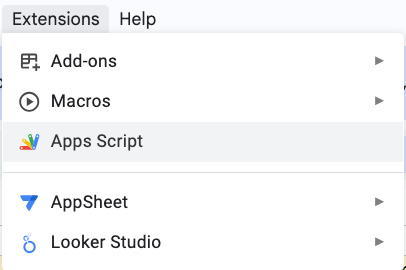
SS by Author
Kabir clicked on it and landed on the Apps Script editor, where he saw a file named code.gs with some pre-defined code.
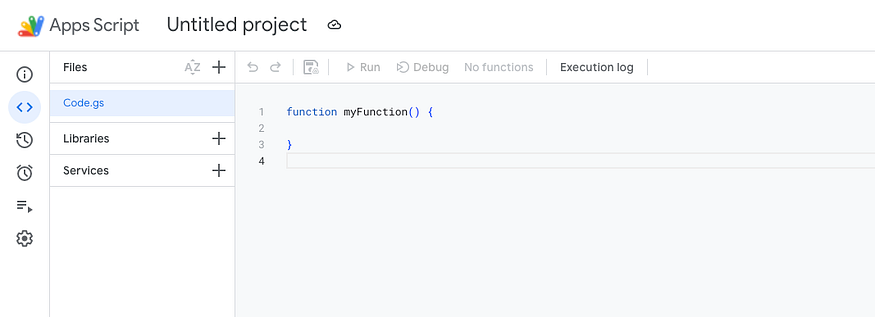
SS by Author
One can write code in
code.gsas per their use case.
You can do computations over the sheets, combine multiple sheets with appropriate access, and automate almost anything.
Kabir, being a non-tech person, got curious:
How can I write the code?
That’s where AI comes as a savior.
With AI in the modern world, we can ask it to do what we are not good at, and with its expertise, it helps us in achieving complex things.
Kabir used one of the AI tools (let’s say ChatGPT) and asked it to write a script for creating a digest report for sales, and added it to the Apps Script editor.
Sample AI Prompt Kabir Used
Create a Google Apps Script for a Google Sheet with the following columns: Date, Salesperson, Product/Service, Status. The script should generate a daily summary report that includes:
- The total number of deals marked as ‘Won’ today
- Number of ‘Won’ deals grouped by each salesperson
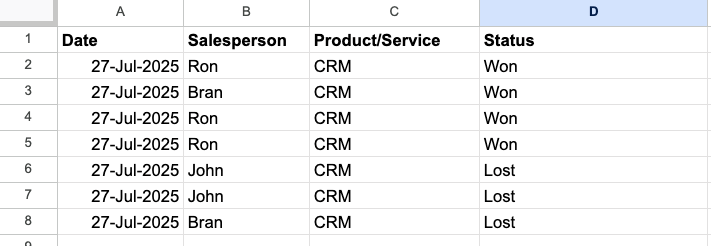
Sample sheet structure (SS by Author)
Once he got the script, he pasted the code into code.gs and executed it using the Run button.
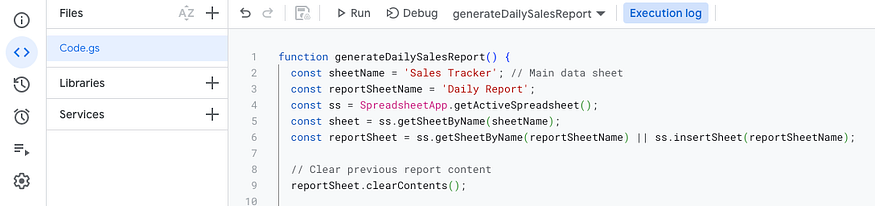
Apps Script Editor (SS by Author)
And tadaaa!!!! 🎉
Here is the result…
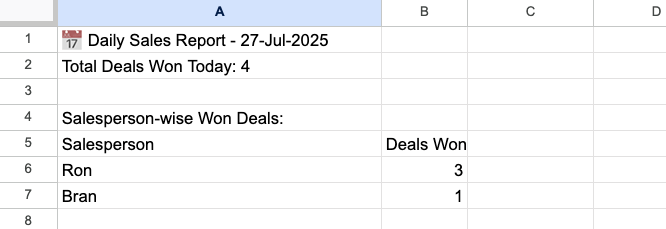
Report generated by the Apps Script (SS by Author)
This is where Kabir realized that Google Sheets is not just a spreadsheet tool, but a powerful automation platform when combined with Apps Script and AI.
Triggers Do Automation When Kabir Attends Meetings
Now, to take it to the next level, Kabir figured out a way to automate this completely using Triggers.
One can check the Triggers option from the Apps Script sidebar menu.
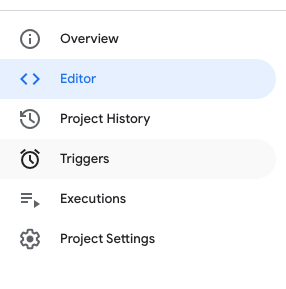
Sidebar menu (SS by Author)
He added a time-driven trigger according to his use case, so the report gets generated automatically without any manual action.
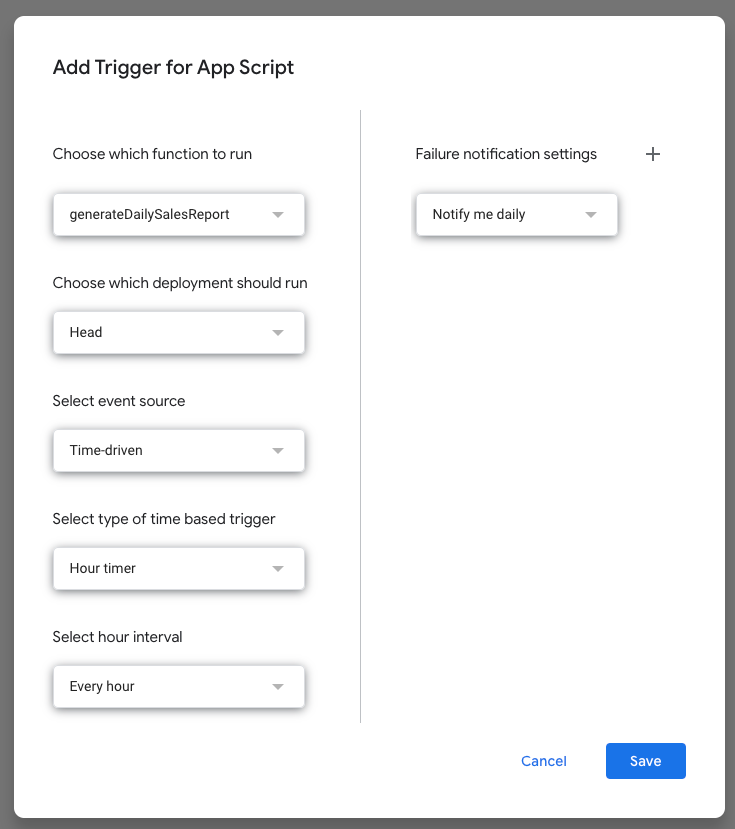
Setting up automation for the Apps Script (SS by Author)
Now, Kabir doesn’t have to worry about generating reports manually.
No more manual intervention.
No more hassle.
His sheet is working smartly even when he is busy attending meetings.
This is how one can use this powerful feature to automate Google Sheets and make them significantly more intelligent.
Conclusion
Using the same strategy, I created an interactive budget management system that powers an interactive dashboard. You can check it here:
Interactive Budget Tracker
I hope you learned something different from this article and are now ready to make your Google Sheets smarter and more efficient.